Install Staff Hub
Getting started takes less than a minute
Option A: Shopify
Install from the Shopify App Store
Search for "Staff Hub" in the Shopify App Store, click "Add app," then "Install app" to approve the installation. Staff Hub will appear in your Shopify admin sidebar under "Apps."
Option B: Standalone Web App
Sign up at app.staffhubapp.com
No Shopify store? No problem. Visit app.staffhubapp.com, create your organization, and use Staff Hub from any browser.
Either way:
Start with a 14-day trial
New web workspaces start with a 14-day full-access trial. The free plan for up to 5 staff remains available if you do not upgrade.
Tip: Shopify users: find Staff Hub in your admin sidebar under "Apps." Web users: bookmark app.staffhubapp.com for quick access.
Your First Look
A friendly guide walks you through everything
When you open Staff Hub for the first time, you'll be greeted by our friendly assistant, Buddy, who offers a quick guided tour.
Take the guided tour
Click "Show Me Around" and Buddy will walk you through the main sections of the dashboard, highlighting where everything is.
The sidebar is your navigation
Everything is organized in the left sidebar. Training, announcements, team management, and more are all just one click away.
Replay anytime
Forgot something? You can restart the tour anytime from the help button. Each page also has its own mini-tour.
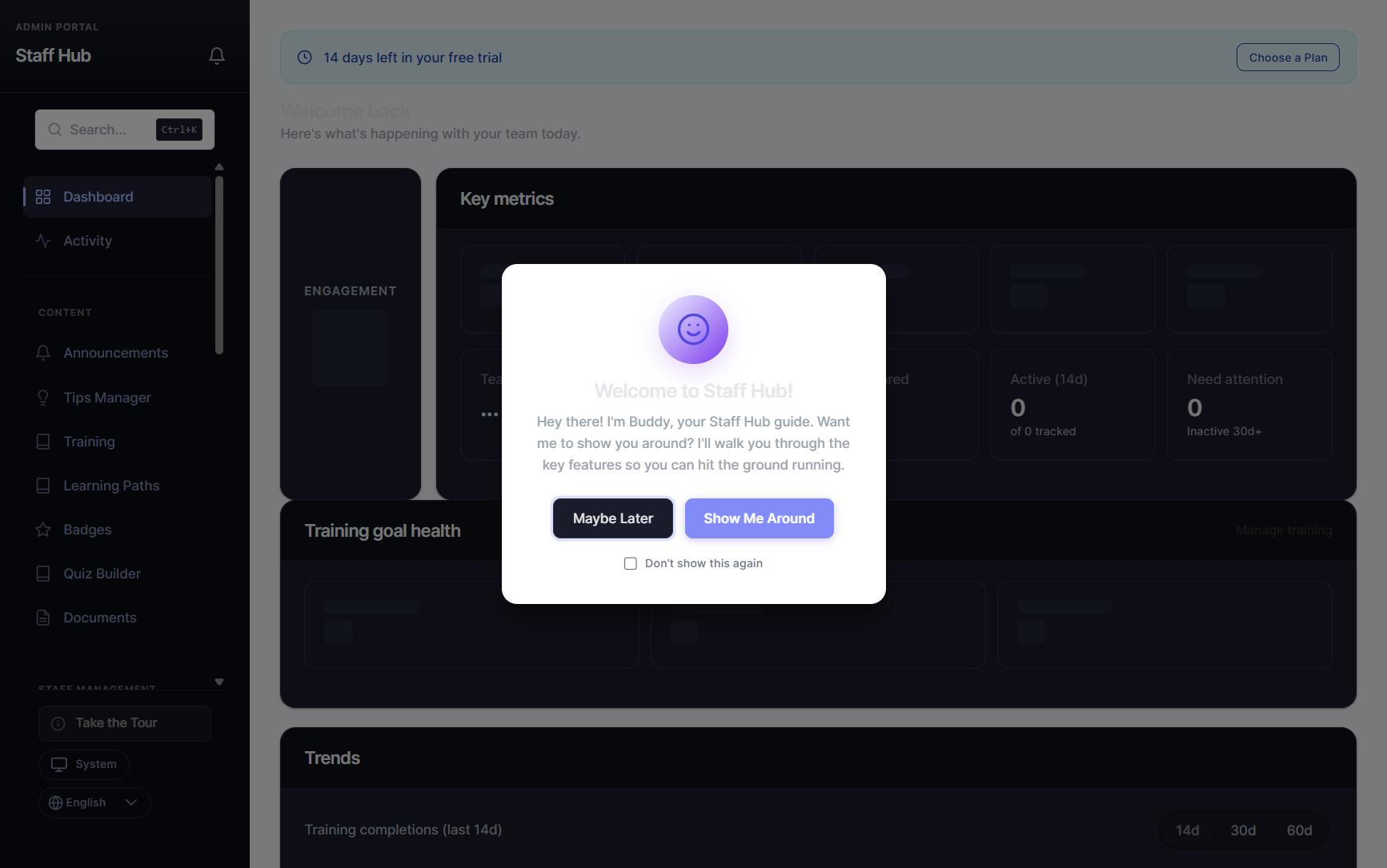 Buddy welcomes you with a guided tour of the dashboard
Create Your First Training
Build training content your team will actually enjoy
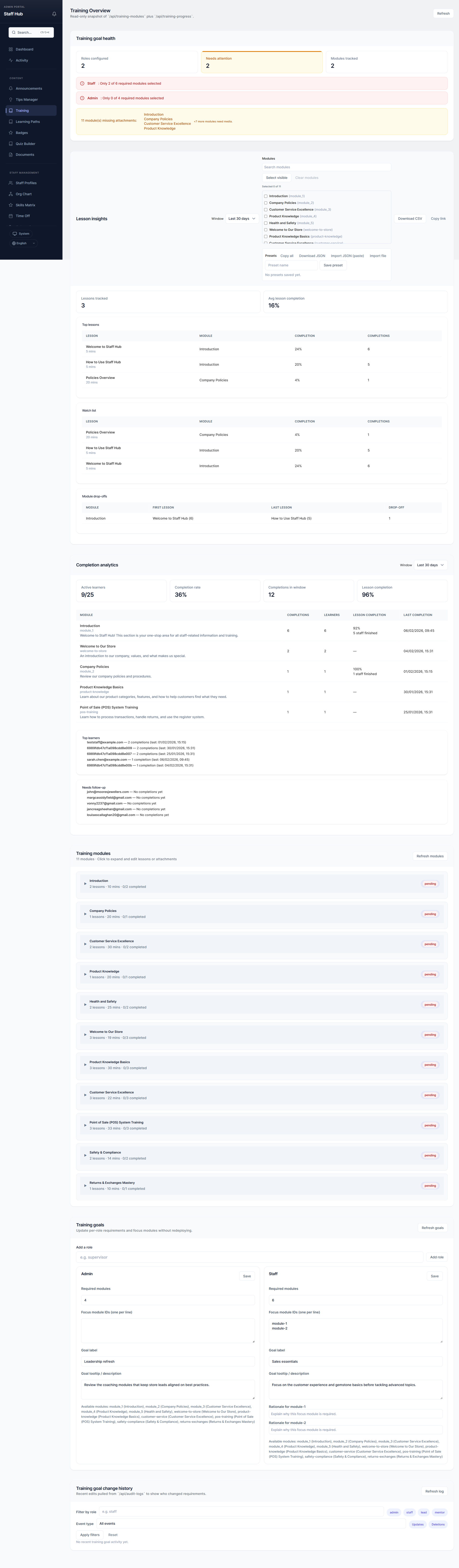 The training page where you create and manage all your
courses
The training page where you create and manage all your
courses
Training is at the heart of Staff Hub. Here's how to create your first training module in just a few clicks.
Go to Training in the sidebar
Click "Training" in the left sidebar to open the training page.
Click "Create Module"
Give your training a title (e.g., "New Hire Orientation" or "Product Knowledge"). Add a description so staff know what they'll learn.
Add lessons
Each module can have multiple lessons. Add text, images, or video links. Write it like you're explaining to a friend.
Add a quiz (optional)
Test what your staff learned with a quick quiz. Multiple choice, true/false, or open-ended questions.
Publish it
Hit publish and your staff can start learning immediately. You'll see their progress in the dashboard.
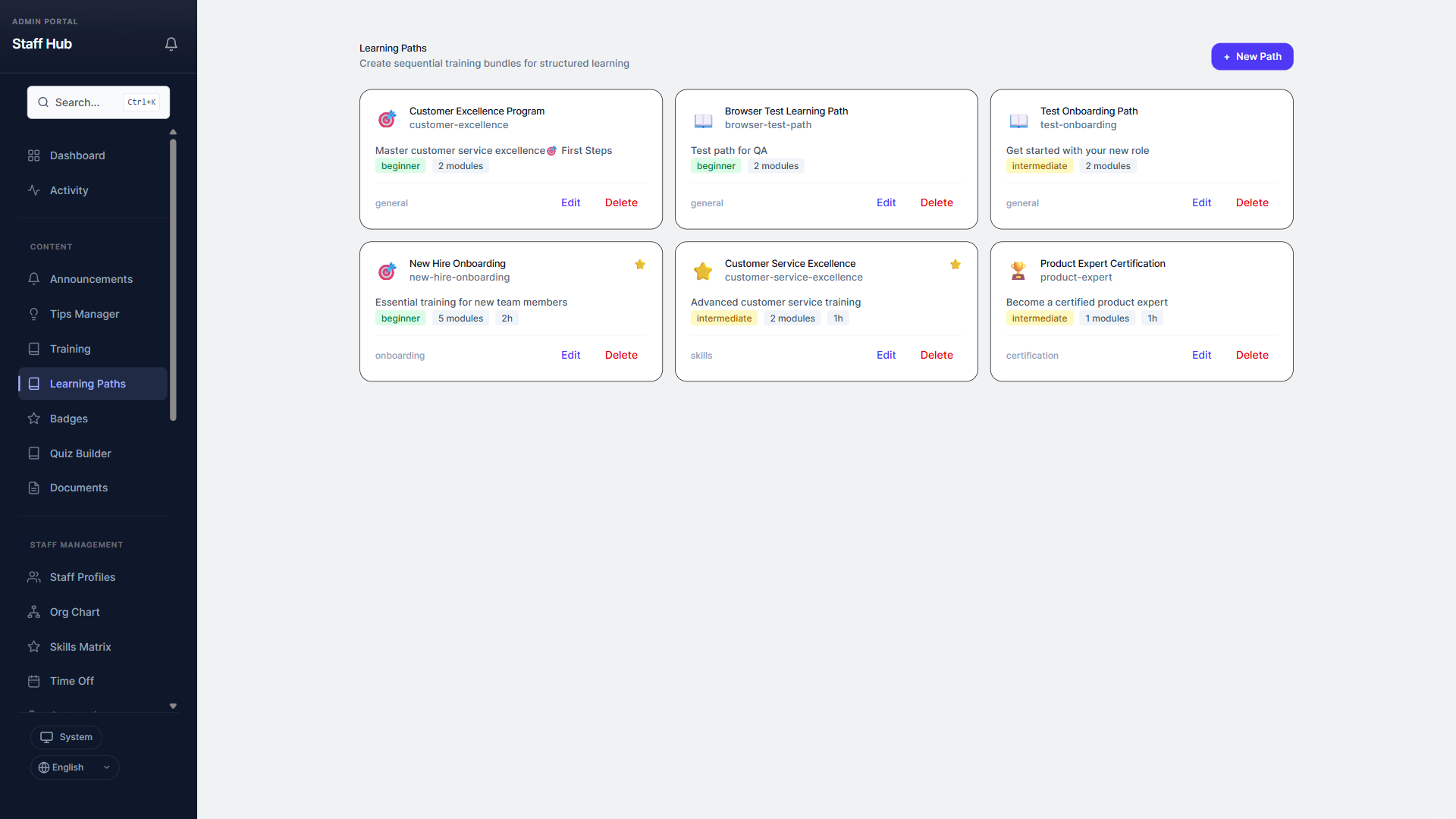
Bonus: Create a Learning Path
Want staff to complete training in a specific order? Go to "Learning Paths" and chain multiple modules together into a guided sequence. Perfect for onboarding new hires. (Available on Pro & Enterprise plans)
Communicate with Your Team
Keep everyone informed and connected
Staff Hub gives you several ways to share information and stay connected with your team.
Announcements
Click "Announcements" in the sidebar, then "New Announcement." Write your message, and your entire team will see it. You can even track who's read it.
Tips & Best Practices
Go to "Tips" to share helpful advice. Staff can also submit their own tips for you to approve. Great for sharing product knowledge.
Messaging & Channels
Use "Channels" for topic-based conversations (like a #general or #sales channel). Staff can also send direct messages to each other.
Polls
Need quick feedback? Go to "Polls" and create a question with options. See results in real-time as your team votes.
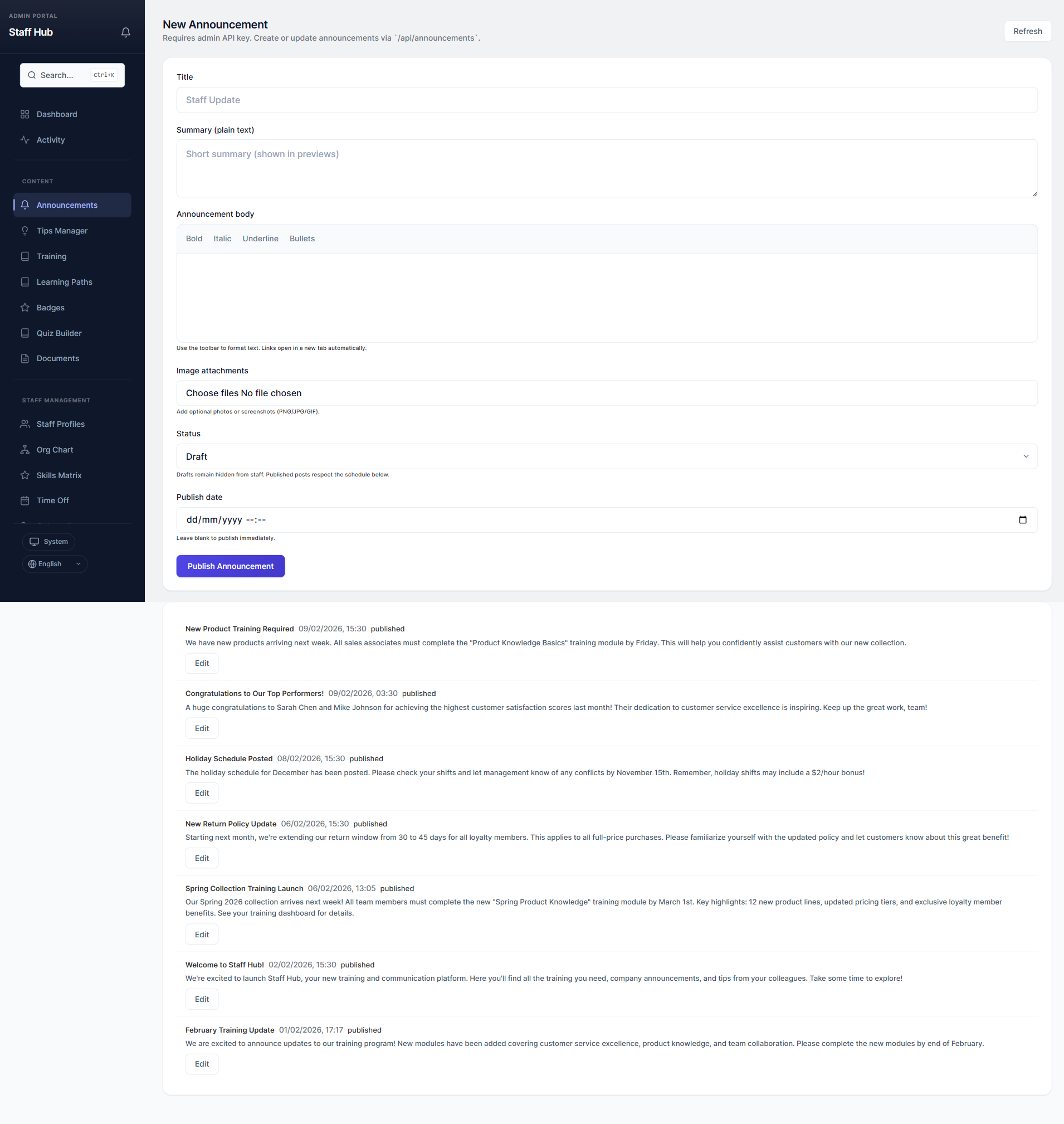 Create announcements to keep your whole team in the loop
Manage Your Team
Add staff, set schedules, and stay organized
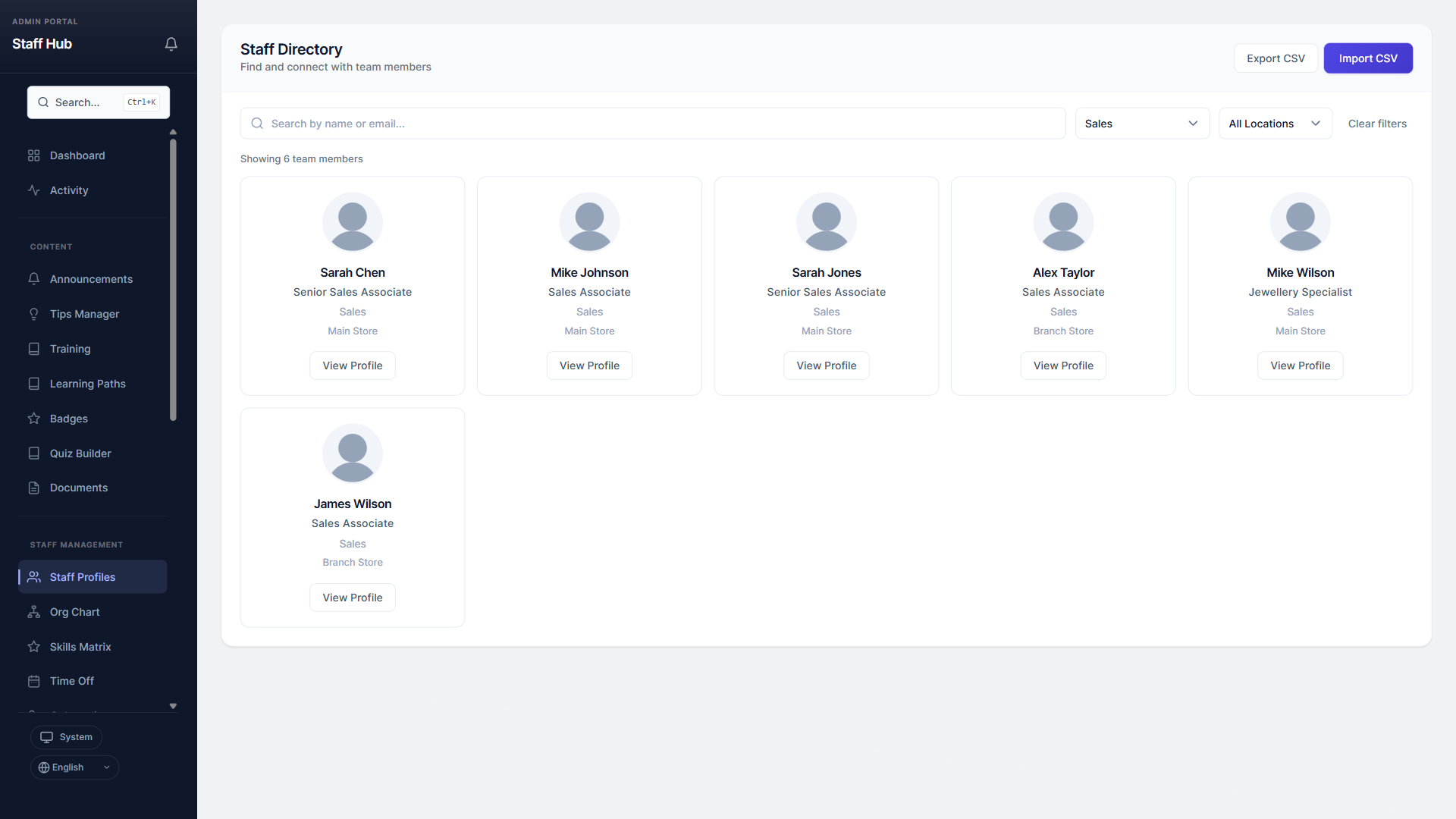 View and manage all your staff members in one place
Staff Hub makes it easy to keep your team organized and your operations running smoothly.
Add staff members
Go to "Staff Profiles" and click "Add Staff." Enter their name, email, and role. They'll receive a login link to access the staff portal.
Create schedules
Click "Scheduling" to build your team's schedule. Drag and drop shifts, or click to add them. Staff can see their schedule on their portal.
Handle time off requests
Staff submit time off requests from their portal. You'll see them under "Time Off" and can approve or deny with one click.
Track performance
Use "Performance" to run reviews and set goals for your team. Staff can track their own progress too. (Pro & Enterprise)
What Your Staff See
A dedicated portal built just for your team members
Your staff get their own clean, simple portal where they can access everything they need. Here's what they'll find.
Home dashboard
A personalized homepage showing their announcements, upcoming schedule, training progress, and coaching tips.
Training & learning
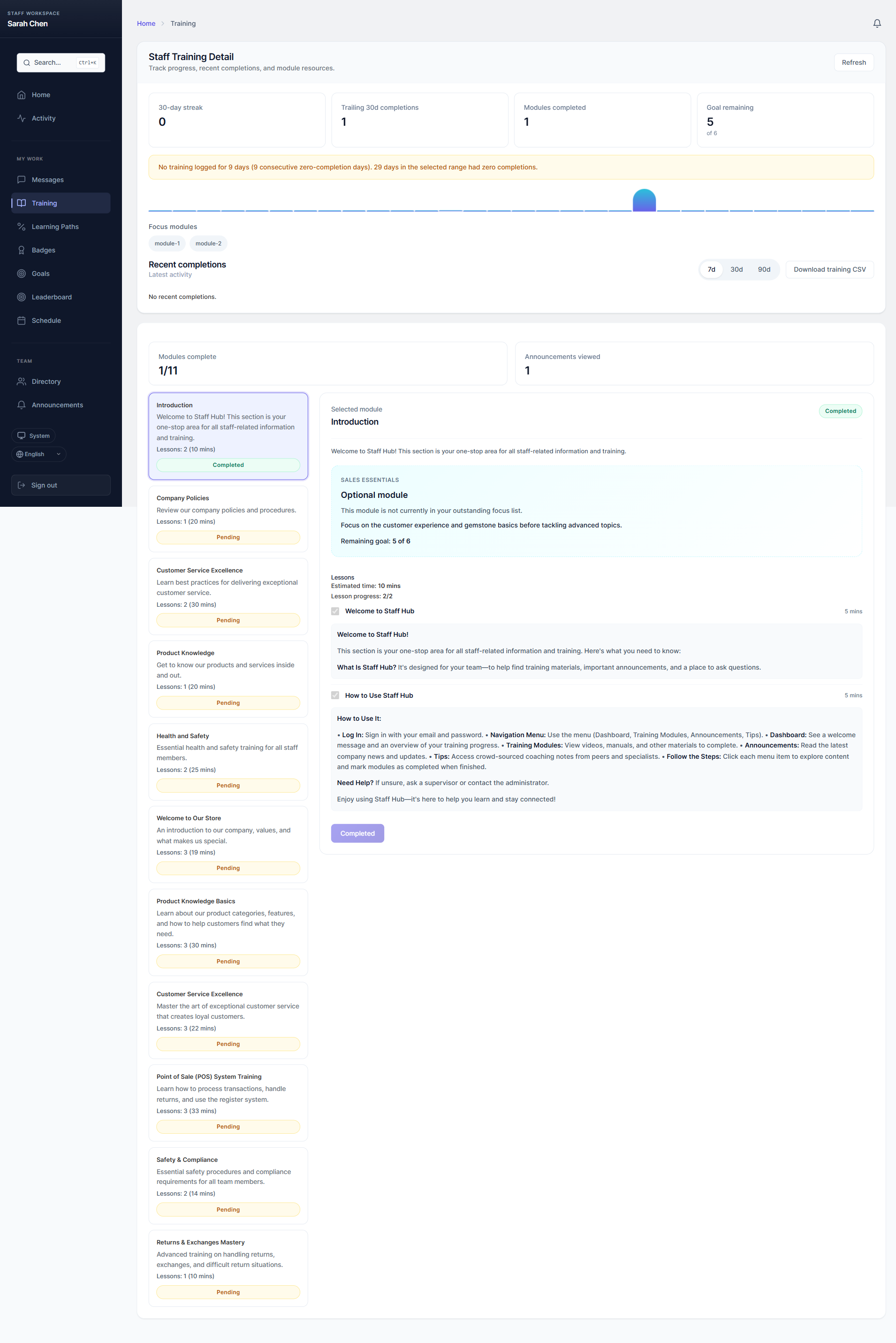
Staff complete assigned training modules, take quizzes, and work through learning paths at their own pace.
Badges & leaderboard
Earned badges appear on their profile. The leaderboard shows rankings and streaks, adding a fun, competitive element.
Schedule, time off & more
Staff view their shifts, request time off, message colleagues, vote in polls, and manage their profile, all from one place.
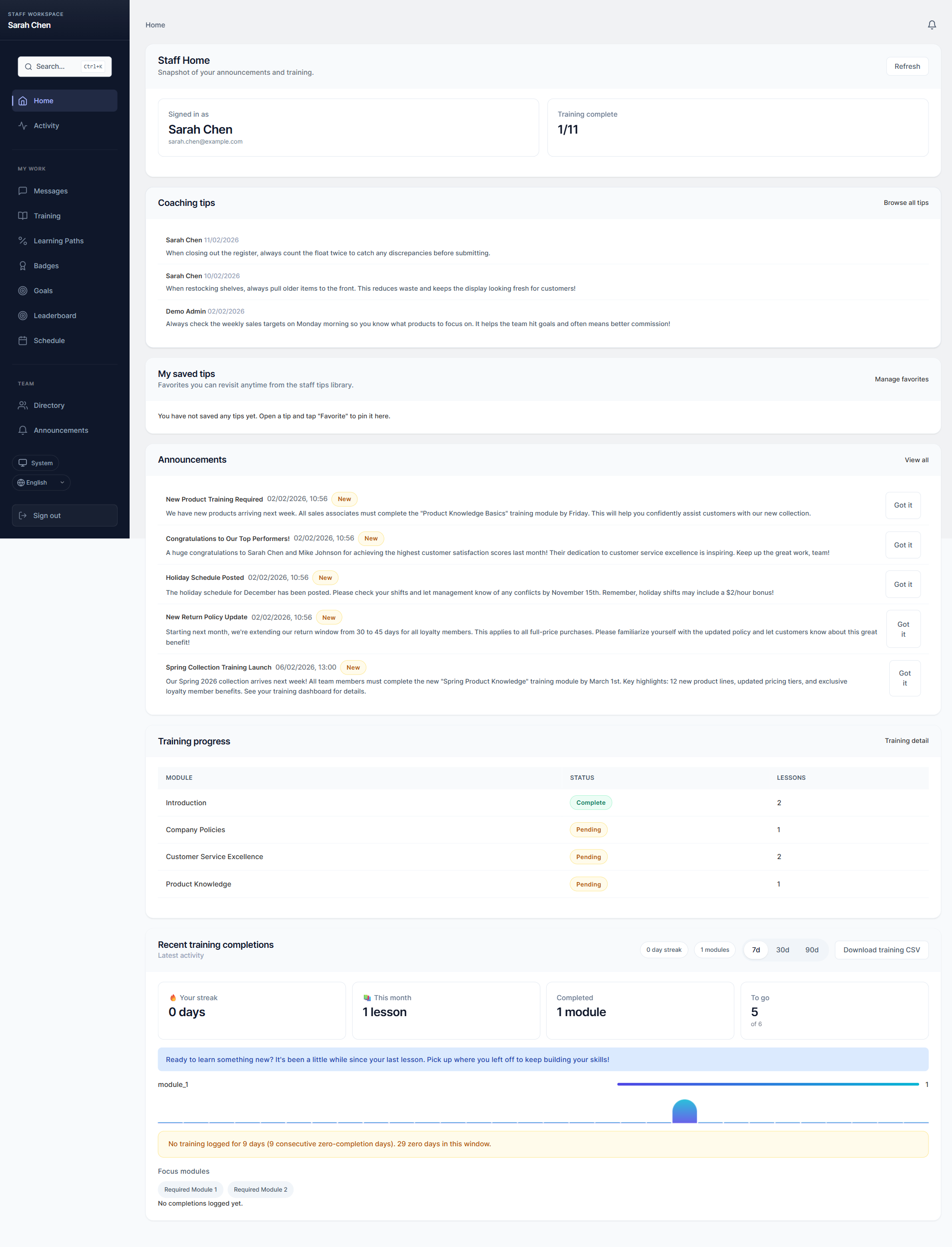 The staff portal home page: clean, simple, and
personalized
The staff portal home page: clean, simple, and
personalized
 Training
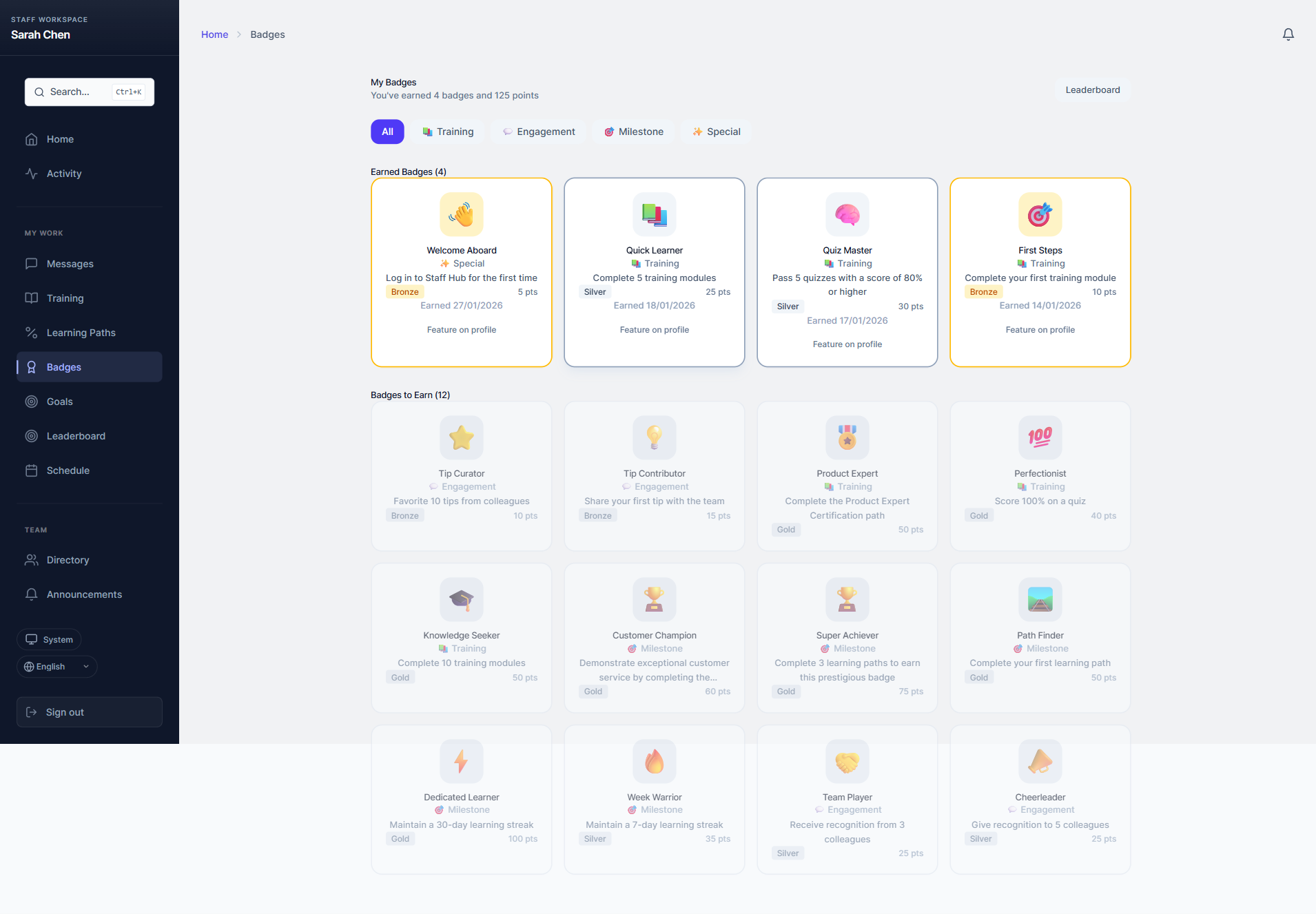 Badges
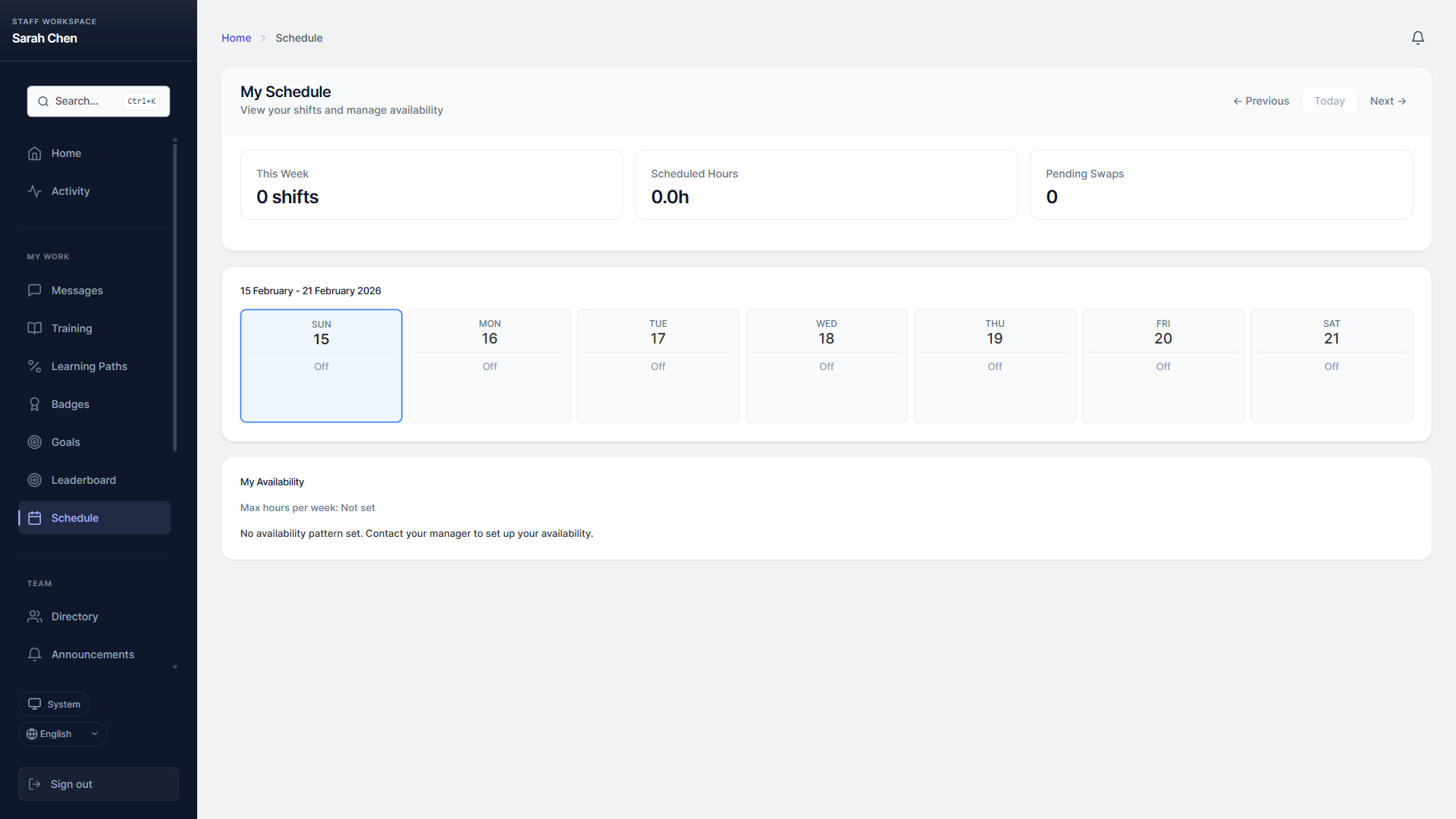 My Schedule
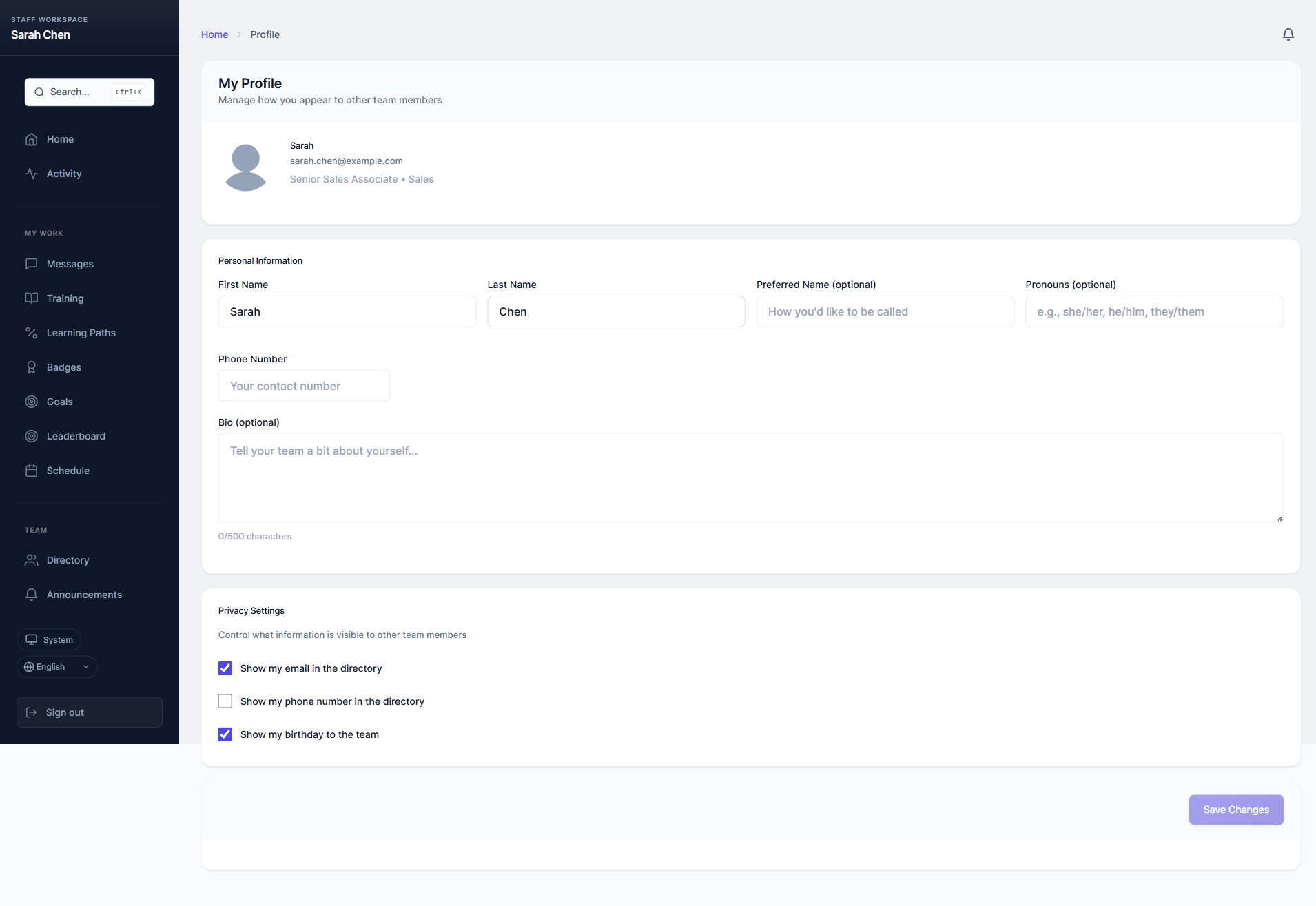 My Profile
Set Up Workforce Operations
Turn Staff Hub into your daily staff operations workspace
Complete staff profiles
Add job roles, assigned locations, POS role details, payroll export IDs, compensation settings, and commission eligibility before publishing schedules.
Create schedules and time-off rules
Build shifts, manage availability, review time-off requests, and publish schedules so staff can see upcoming work on mobile.
Confirm fit before using time-clock workflows
Have a manager run a test clock-in, break, clock-out, correction, and timesheet approval before using the workflow for payroll exports.
Review commissions and sales goals
Use commission and sales goal workflows for staff performance reporting against Shopify POS sales.
Tip: Staff Hub can help prepare operational export context, but your payroll provider and local employment rules still determine final payroll processing.
Make It Yours
Customize Staff Hub to match your brand
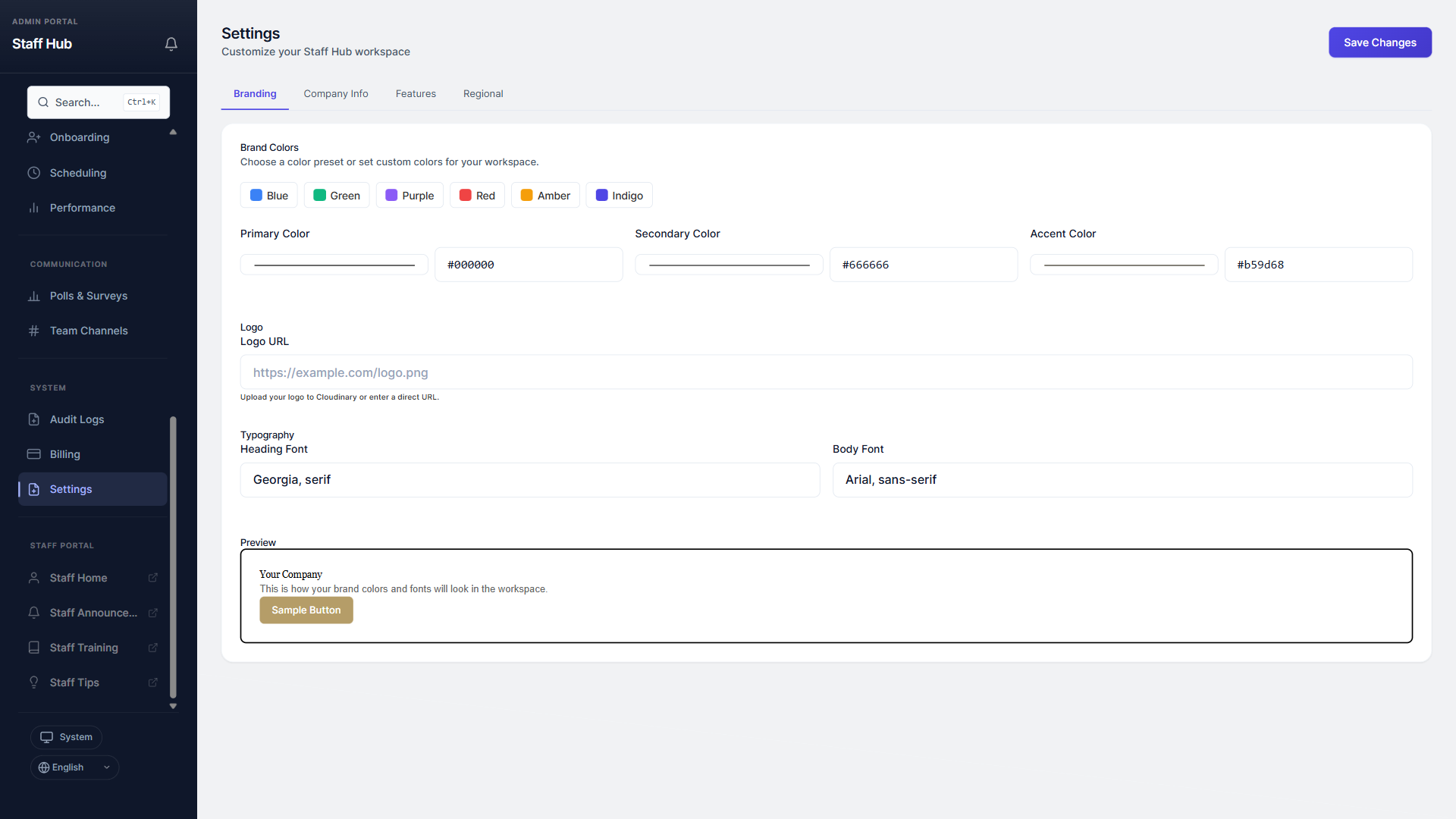 Customize colors and branding to match your store's
identity
Customize colors and branding to match your store's
identity
Make Staff Hub feel like it's truly part of your business.
Branding & colors
Go to "Settings" in the sidebar. Upload your logo and choose your brand colors. The staff portal will update to match.
Custom badges
Create your own achievement badges under "Badges." Name them, choose an icon, and set the criteria for earning them.
Language
Staff Hub is English-first at launch, with regional English formatting available. Spanish, French, German, and Portuguese catalogs remain draft-only until translation coverage is complete.
You're All Set!
That's everything you need to get started. Remember, Staff Hub has a guided tour on every page, so you'll always have help right where you need it.
Need help? Email us at [email protected] and we'll respond within 24 hours.